[TX] How to get your RON/Electronic Endorsement in Texas
[TX] How to get your RON/Electronic Endorsement in Texas
If you have a traditional Texas notary commission, you can visit the Texas Secretary of State's website and apply for your online notary commission.
You can check to see if you are currently commissioned using their Notary Public Search.
Note: If you do not already have a notary license, you will need to complete that as your first step.
Video Resources
- How to Become a Remote Online Notary in Texas
A video overview explaining the Texas Remote Online Notary (RON) registration and endorsement process.
Steps To Become a RON in Texas
Step 1: Sign-up & Create Your Account With Everythinglegal.com
Obtain your Digital Certificate, Electronic Signature, and Digital Stamp from our partners at SSL through our all-in-one platform.
Everything Legal also provides you with the required Electronic Journal for documenting your remote online notarizations.
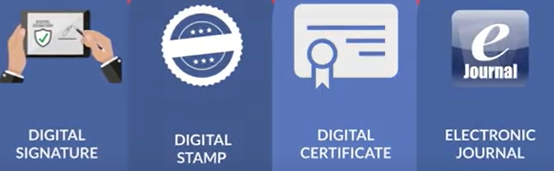
For instructions on how to properly save your digital certificate to your computer, refer to the help article here:
[Get Your Digital Certificate](X509 Certificate Setup Guide)
Step 2: Access the Texas Secretary of State Electronic Application System
Apply to become a remote online notary through the Texas Online Notary Public Commissioning System.
Step 3: Provide your information
You will need the following information handy for your application:
- The name under which you are currently commissioned as a traditional notary public
- Your notary identification number assigned by the Secretary of State (find this via the Notary Public Search linked above)
- Your date of birth
- Your social security number
- A valid email address
This information must exactly match the information on your active notary commission.
Step 4: Acknowledge State Requirements
Applicants must agree that they:
- Will use a state-approved third-party RON software provider that complies with Texas' identity proofing and credential analysis requirements (Everythinglegal.com platform)
- Meet all eligibility requirements for traditional notaries
On the application form, you must check a box next to each statement above to confirm agreement.
Step 5: Sign and Submit the Statement of Officer Form

- Download the Statement of Officer form and save it to your computer
- Upload it to Notary Hub in the RON endorsement onboarding Step 2
- Sign it with your electronic signature/stamp and apply your X.509 Digital Signing Certificate
- Save it to your computer and upload the saved document to the Secretary of State online notary application system
- Once uploaded, the system will display your Certificate Details screen
Step 6: Upload Your Electronic Signature/Seal

- Upload your electronic seal in an acceptable image format
- Acceptable formats include: BMP, JPEG, PNG, or TIF
Note: Seals that are not in the required format may be rejected.
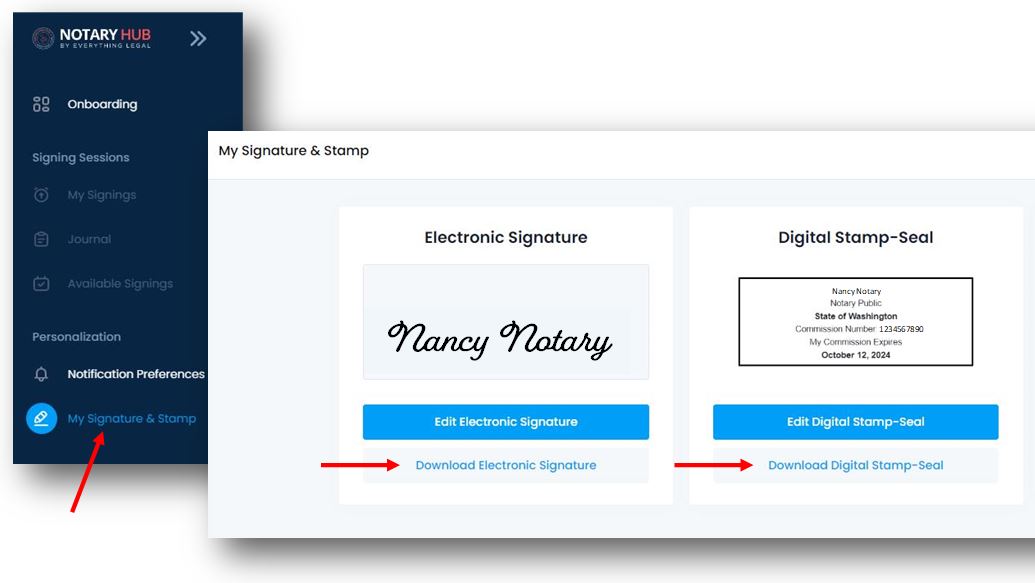
You can download a JPEG file of your signature and seal (digital notary stamp) from your Notary Hub Profile to upload to the State's online application form.
Step 7: Pay the Application Fee & Submit Your Application
- Texas charges an enhanced license application fee of $50 (+2.7% convenience fee, payable by credit card).
- After entering your card information, review all details and select Submit My Application.
- You will receive confirmation on the screen and a notary application number for your records.
- A confirmation email will be sent to the address you provided.
If your application was not successfully submitted, the system will display instructions for how to continue.
Once your application is approved, you may begin using your RON platform for notarizations performed remotely.
Remember, you must be physically located in Texas during the notarial act.