Available Signings Page
Overview
Purpose of the Article
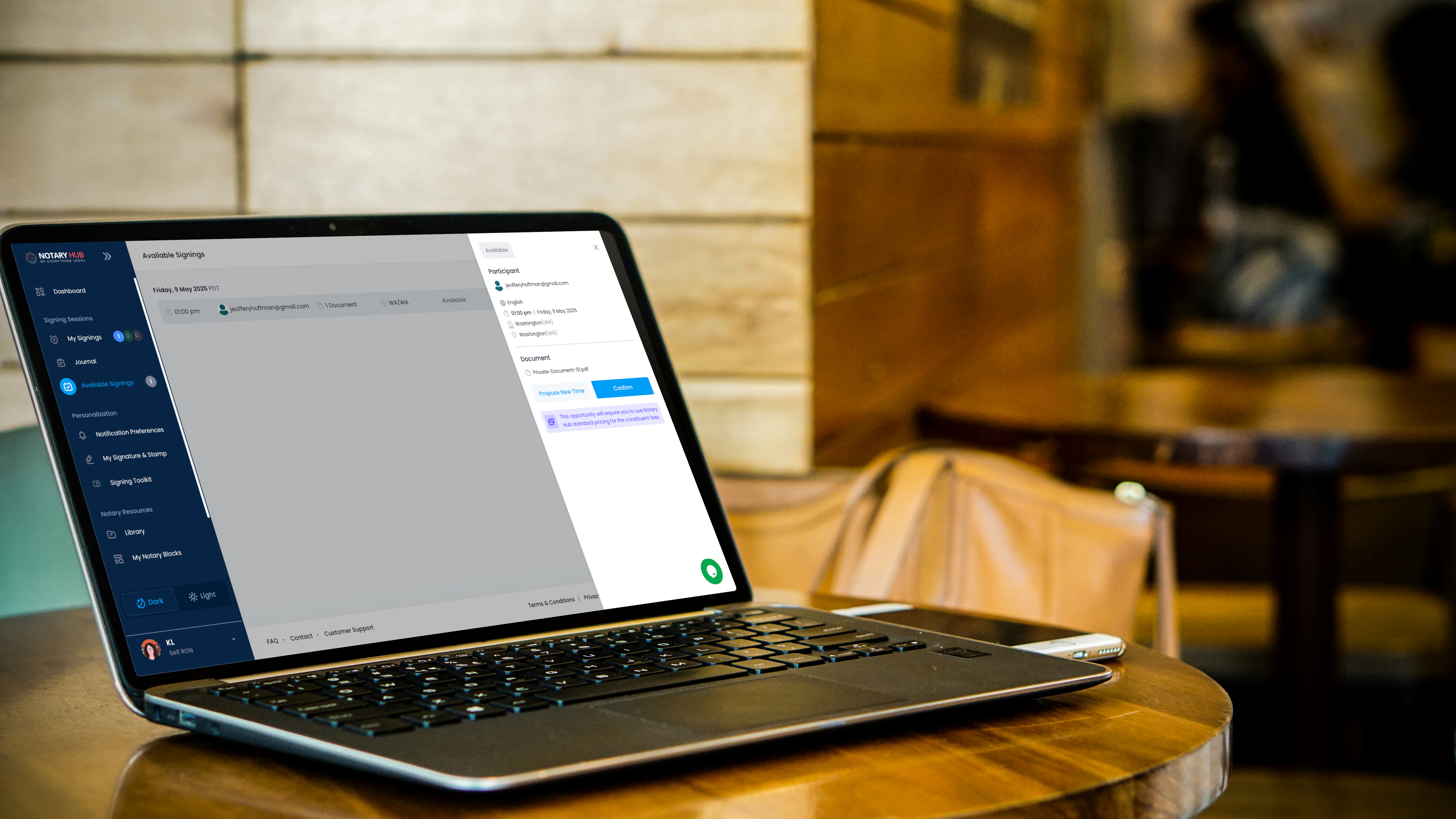
This guide explains how notaries can view, accept, or reschedule available signing invitations on the Available Signings page in Notary Hub.
Who Should Use This Guide
- Notaries looking to pick up new signings from individual clients or organizations.
- Notaries who want to understand how signings are offered and claimed within Notary Hub.
Key Takeaways
- How to navigate to the Available Signings page.
- How to accept or propose new times.
- Why advertising your storefront is more effective than waiting for "organic" invitations.
Important Context About Notary Opportunities
Notary Hub does occasionally distribute signing opportunities to notaries via email and dashboard alerts, but these should not be relied on as a consistent source of income. These "organic" sessions are offered on a first-come, first-served basis and can be competitive.
To consistently attract new signings, we strongly recommend promoting your Notary Storefront using the shareable link and QR code.
How to View Available Signings
| Instructions | Visuals |
|---|---|
| Log in to Notary Hub and click on the "Available Signings" link from your main dashboard. | 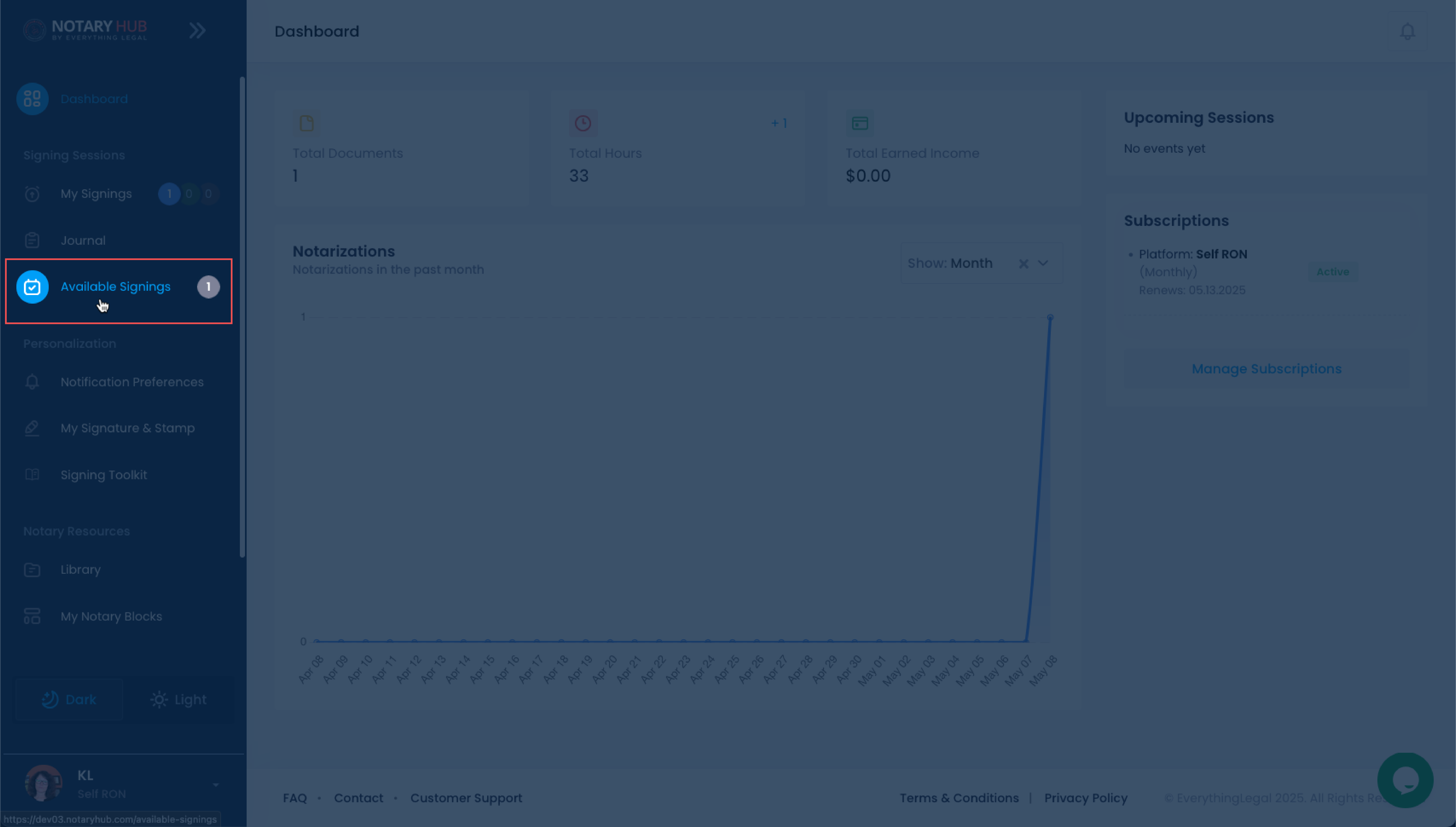 |
| You’ll see a list of available signings that match your commissioned state and account settings. | 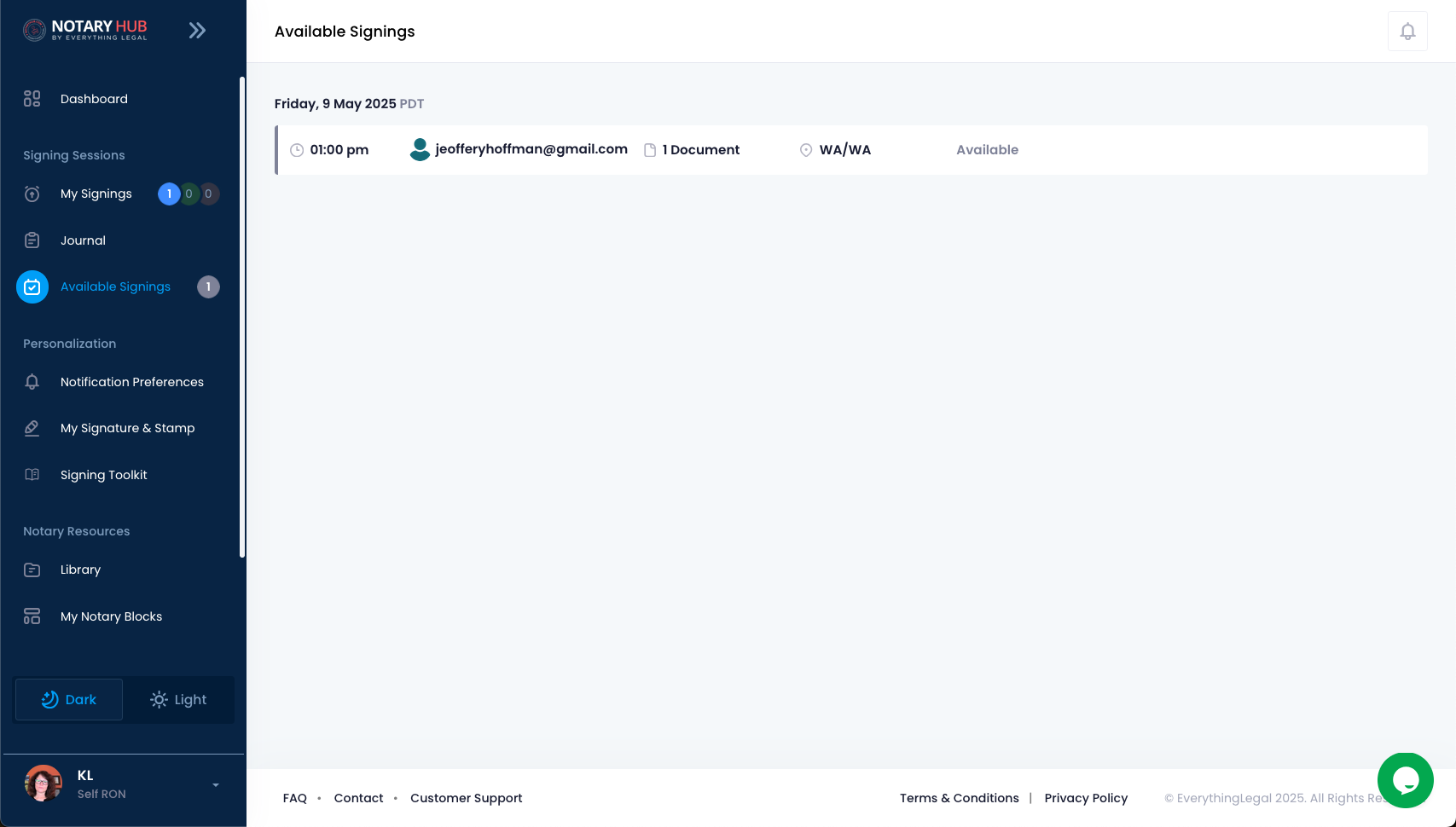 |
| Click on any available signing to view more details. A sidebar panel will appear showing the session’s date, time, state, language, and participant email. | 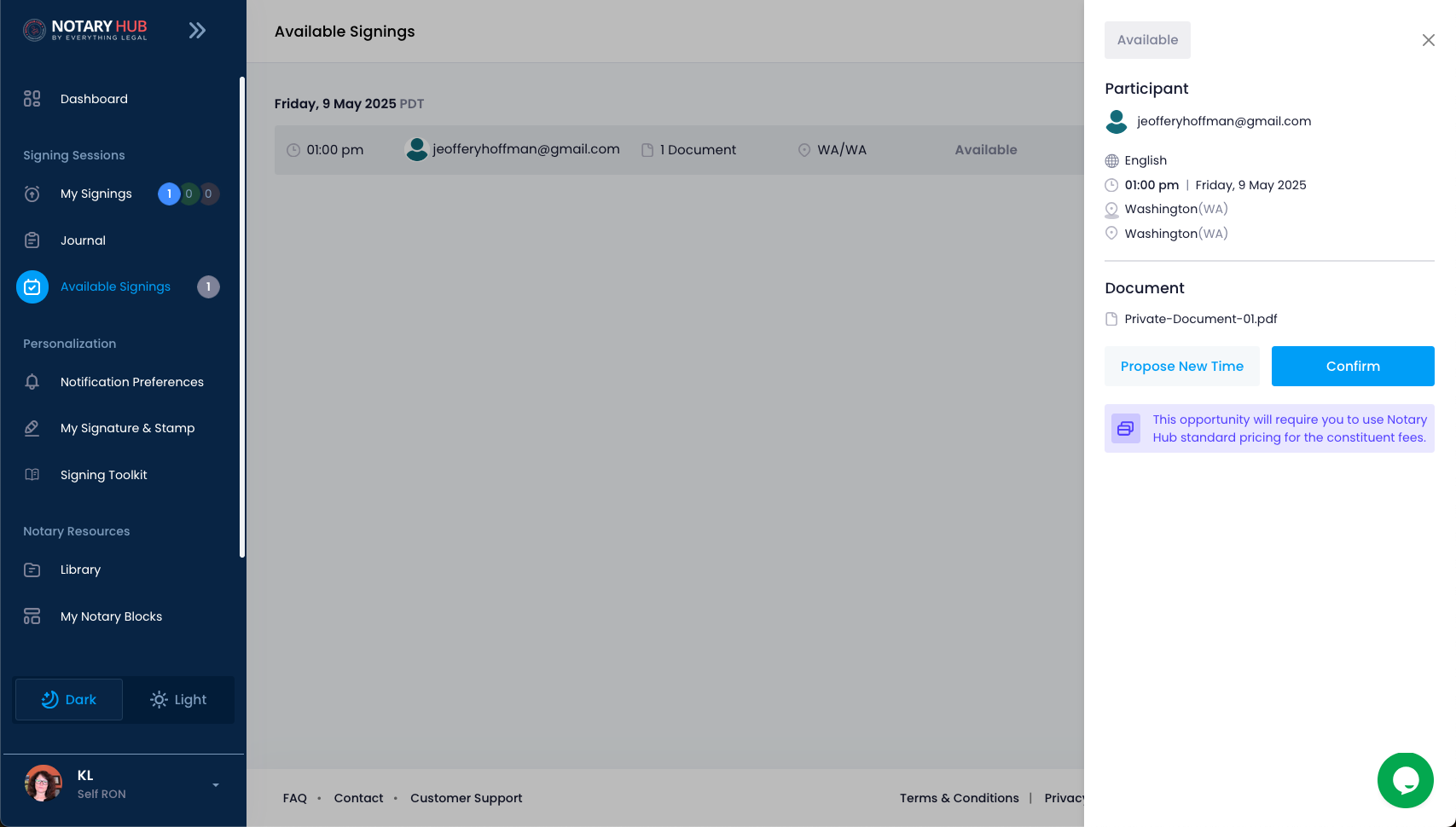 |
How to Accept or Propose New Time
| Instructions | Visuals |
|---|---|
| Review the signing details to confirm you are available and qualified. | |
| Click the "Confirm" button to claim the signing. | 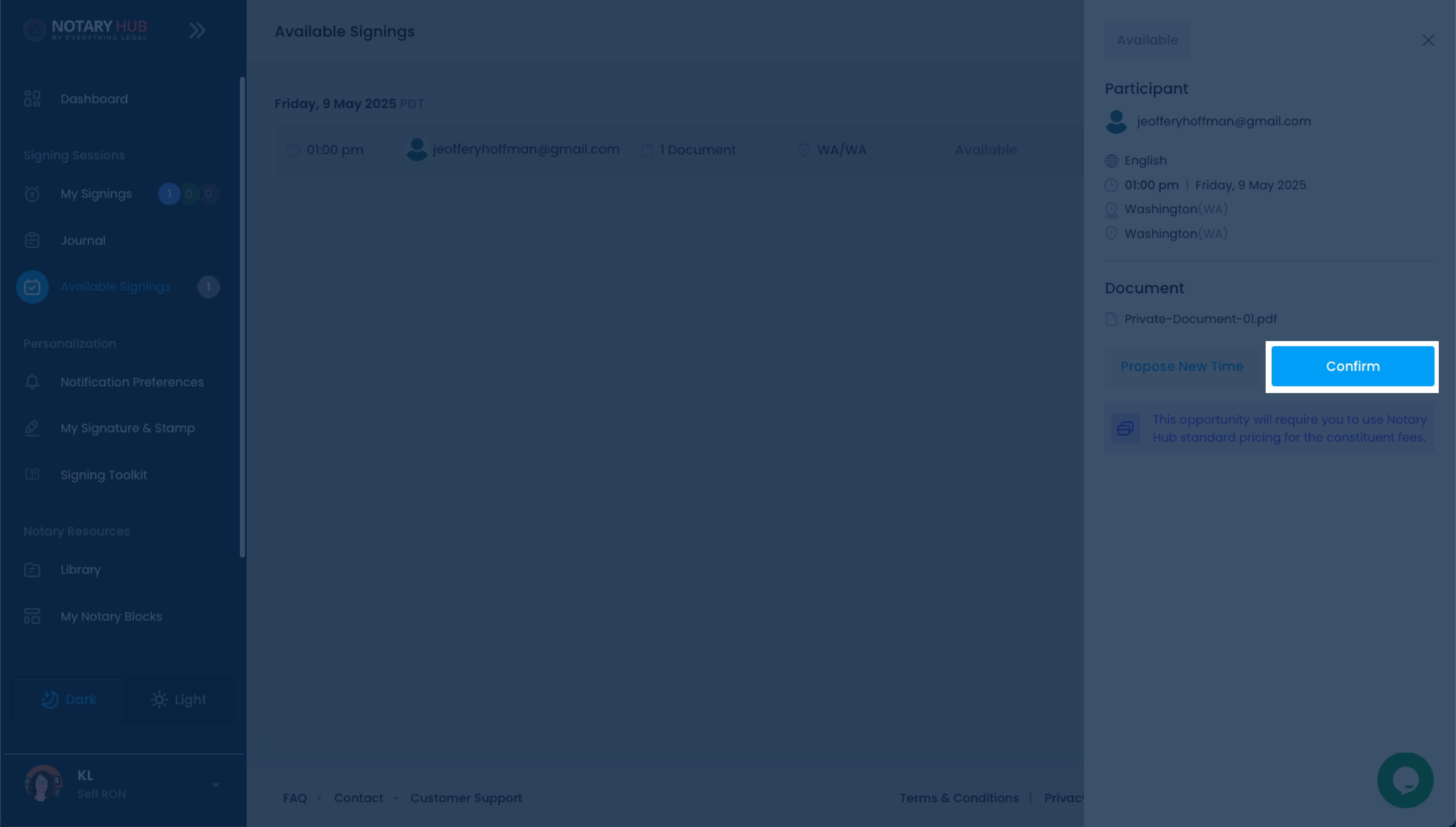 |
| You will see a confirmation banner "Notary appointment confirmed" and the session will be moved to your "My Signings" page. | 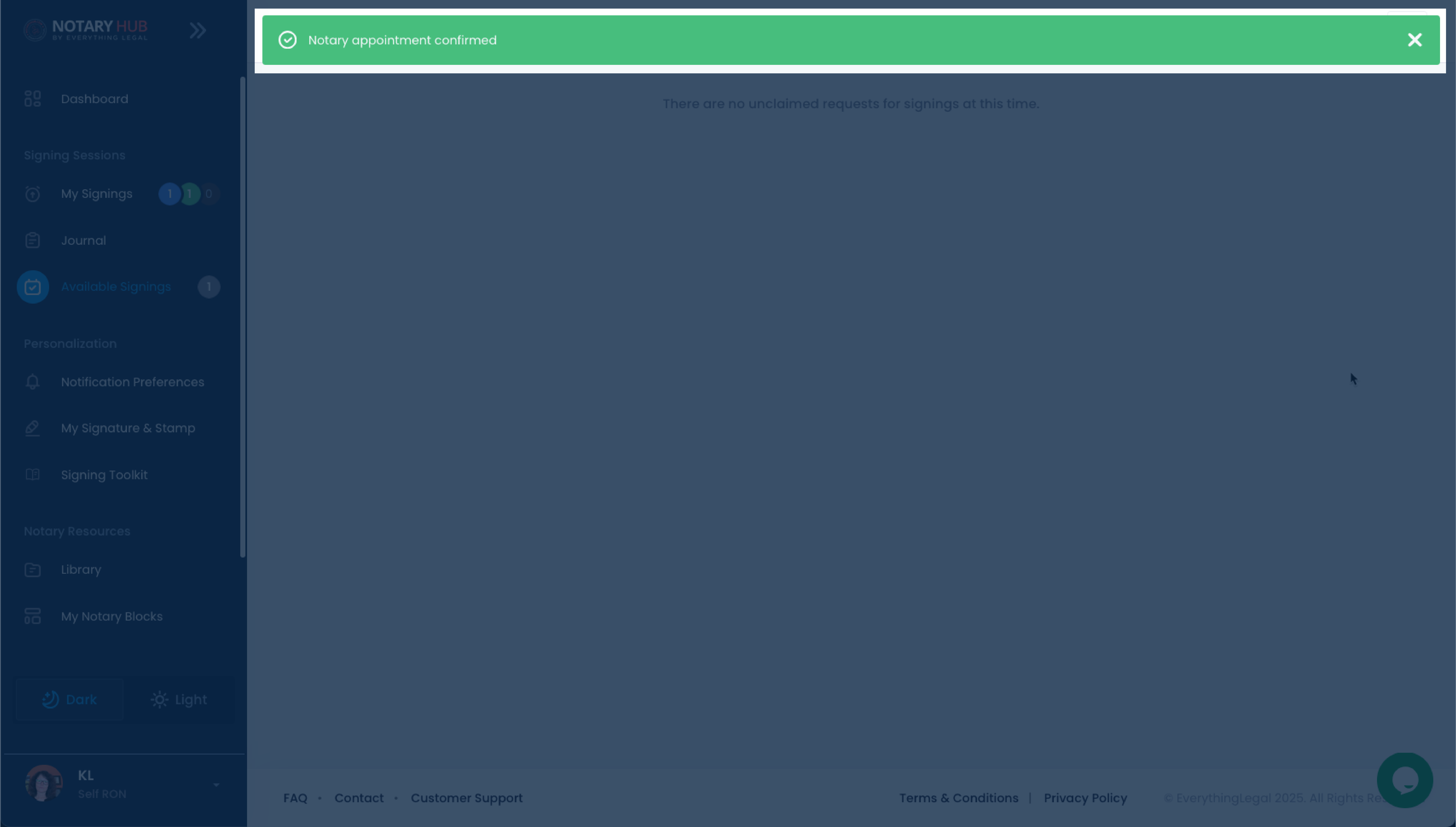 |
| If you're unavailable, click "Propose New Time." | 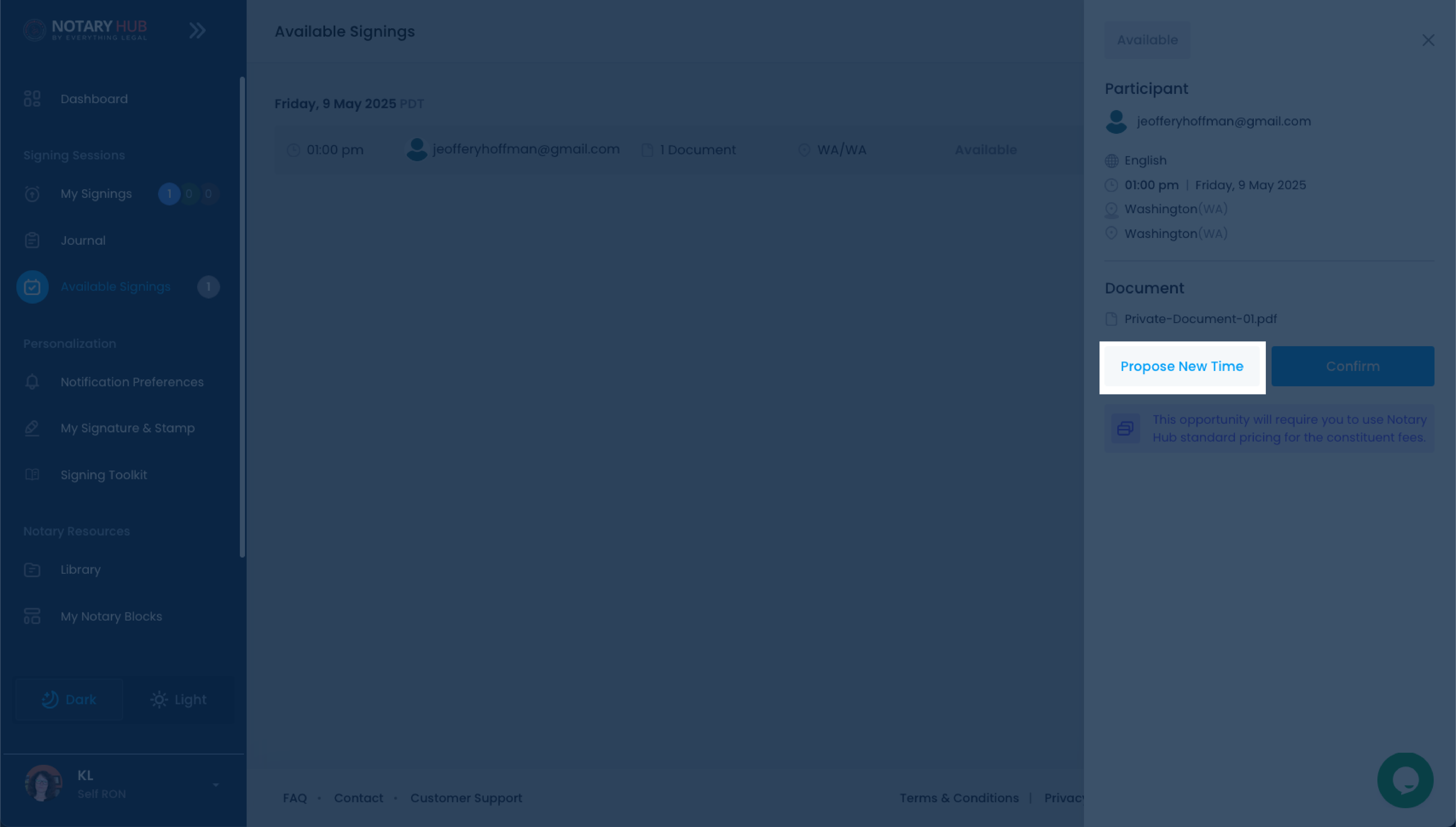 |
| Here you can select a new date and time that works for your availability. | 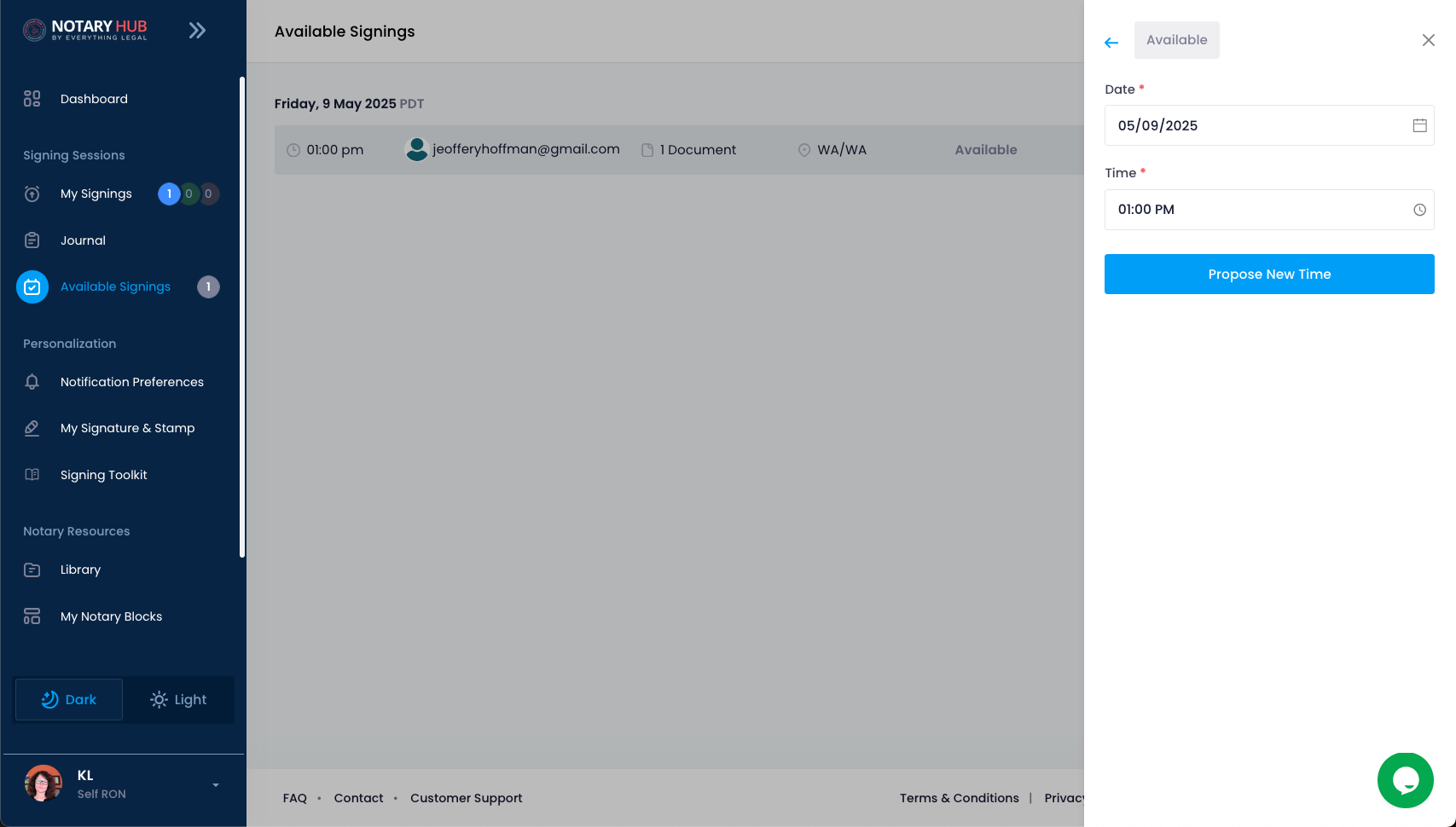 |
How Notifications Work
- You’ll receive an email notification when a new signing becomes available to you.
- Available signings are removed once another notary accepts them.
⚠️ These notifications are limited and not guaranteed. Most notaries get clients through their storefront link.
Best Practices for Notaries
- Promote your Notary Storefront actively—this is the most effective way to get consistent work.
- Share your personalized link or QR code with potential clients.
- Treat these as bonus opportunities. For consistent business, rely on your Notary Storefront and direct outreach.
Frequently Asked Questions
Q: Are these signings assigned to me directly?
- A: No. They are first-come, first-served. Any eligible notary may accept them.
Q: Will I be notified about all available signings?
- A: You’ll be notified about opportunities that match your commission and availability, but not all signings are guaranteed to trigger a notification.
Q: What happens after I accept a signing?
- A: It moves to your "My Signings" dashboard, and you’ll receive preparation instructions from the client or platform.
Q: Can I edit or decline after accepting?
- A: Yes. Once a signing has been accepted, you can still decline or reschedule it by opening the session from your "My Signings" page and selecting the appropriate option.
Q: Can I customize what kinds of signings I get notified about?
- A: Not at this time. Signings are filtered based on state, notary type, and occasionally certification.
Q: Why don’t I see any available signings?
- A: Signings go quickly and aren’t always available. We encourage notaries to advertise their storefront for steady opportunities.
Q: Can I filter signings by type or date?
- A: Not currently. Signings are listed chronologically.
Q: What if someone else accepts the signing before I do?
- A: If another notary claims the session first, it will disappear from your list of available signings.
Q: What if the proposed time doesn’t work for me?
- A: You can click "Propose New Time" to suggest an alternative. The requester will review and respond.
Q: Can I view the document before accepting the signing?
- A: No. You will only see detailed information about the session, not the documents, until after accepting.
Q: Can I see who the signer is before accepting?
- A: You’ll typically see a participant email and session context, but personal details are limited prior to acceptance.